
Getting Started
This section is for everyone. Read it first, then go to the guide for your role.
What EasySchoolApp is
EasySchoolApp (also called Easy School App or ESA) runs your whole school in one place: students, staff, classes, attendance, scores, report cards, fees, hostel, school bus and messages to parents.
Every school has its own private space in the app. Your school is identified by a School Unit Code (for example 10900). You do not type this code to sign in. The app knows your school from your account. You will see the code at the top of some pages.
There are three portals:
| Portal | Who uses it | How they sign in |
|---|---|---|
| Staff | School Admin, Principal, Head Mistress, Teacher, Bursar, Driver, Chief Security | Email or phone number + PIN |
| Parent | Parents and guardians | Mobile number + 4-digit PIN |
| Student | Students | Admission Number + 4-digit PIN |
The app works in any modern browser on a computer, tablet or phone. You can also install it like a phone app (see Install the app on your phone).
Roles at a glance
Your role decides which menus you see. If a menu in this guide is missing for you, your role does not include it. Ask your School Admin.
| Menu | School Admin | Principal | Head Mistress | Teacher | Bursar | Driver | Chief Security |
|---|---|---|---|---|---|---|---|
| Dashboard | ✔ | ✔ | ✔ | ✔ | ✔ | ✔ | ✔ |
| Students | ✔ | ✔ | Quick link | – | ✔ | – | – |
| Management (staff, payroll) | ✔ | Staff only | – | – | Payroll only | – | – |
| Academics (classes, subjects) | ✔ | ✔ | – | – | ✔ | – | – |
| Results (compute scores) | ✔ | ✔ | – | ✔ | Result SetUp only | – | – |
| Results (publish, positions) | ✔ | ✔ | – | Class results only | Report cards only | – | – |
| Lesson Plans, Exam Timetable | ✔ | ✔ | ✔ | ✔ | – | – | – |
| Chat Moderation | ✔ | ✔ | ✔ | – | – | – | – |
| Finance | ✔ | – | – | – | ✔ | – | – |
| Facilities: Hostel | ✔ | – | – | – | ✔ | – | – |
| Facilities: Bus | ✔ | Live Tracking | – | – | ✔ | My Bus Trips | Live Tracking |
| More: School Setup, SMS | ✔ | ✔ | – | – | ✔ | – | – |
| Settings: Staff access & roles, Signature | ✔ | – | – | – | – | – | – |
| My Portal (avatar menu) | – | – | – | ✔ | – | – | – |
Signing in
Sign in as staff
Purpose: Open the staff portal to do your daily work.
Who can use it: School Admin, Principal, Head Mistress, Teacher, Bursar, Driver, Chief Security.
Steps
- Open your school's EasySchoolApp web address (for example
https://app.easyschoolapp.com). - On the Welcome back page, make sure the Staff tab is selected.
- In Email or Phone Number, type the email or phone number the school registered for you.
- Click Continue.
- Type your PIN in Enter PIN.
- Tick Remember me only if this is your own device.
- Click Login. Your Dashboard opens.
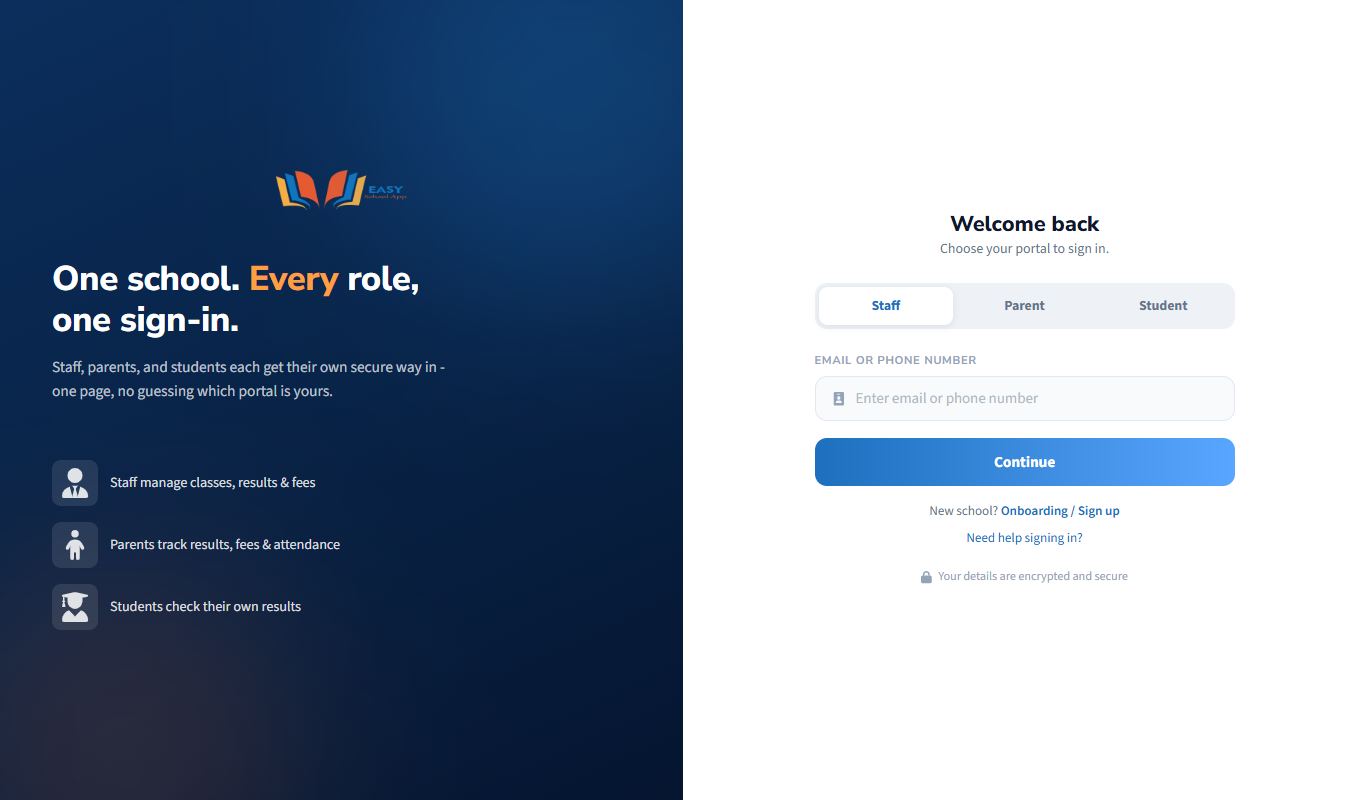
First time signing in (no PIN yet)
- After you click Continue, the app says "You don't have a PIN set."
- Click Send OTP. A 6-digit code (OTP) goes to your registered phone (SMS) and email.
- Type the code in Enter OTP and click Verify OTP.
- Choose a new PIN of 4 to 6 digits. Type it in New PIN and again in Confirm PIN.
- Click Set PIN & Login.
Common errors and fixes
| Problem | Fix |
|---|---|
| "Account not found. Please contact your school." | Check for typing mistakes. Try your phone number instead of your email (or the reverse). If it still fails, ask your School Admin to check your record on Staff access & roles. |
| "This account is registered as a parent…" | You are on the wrong tab. Click the Parent tab and sign in there. |
| The OTP does not arrive | Wait 1–2 minutes, check your email spam folder, then click Resend OTP. Make sure the school has your correct phone number and email. "Please wait 30 seconds before requesting again" means you clicked too quickly. |
| "OTP expired. Please request a new one." | Click Resend OTP and use the new code straight away. |
| "Invalid PIN." | Type it again slowly. If you forgot it, use Forgot PIN? (see Reset a forgotten PIN). |
| A page says your school is suspended or billing is locked | Your school's subscription needs attention. Ask the School Admin to contact EasySchoolApp support. |
Sign in as a parent
Purpose: Open the Parent Portal to follow your child's classes, results, fees and school bus.
Who can use it: Parents and guardians whose phone number the school saved on the child's record.
Steps
- Open the EasySchoolApp web address your school gave you.
- Click the Parent tab.
- In Mobile Number, type the phone number the school has for you (11 digits, for example
0803 123 4567). - Click Continue.
- Type your 4-digit PIN and click Log In.
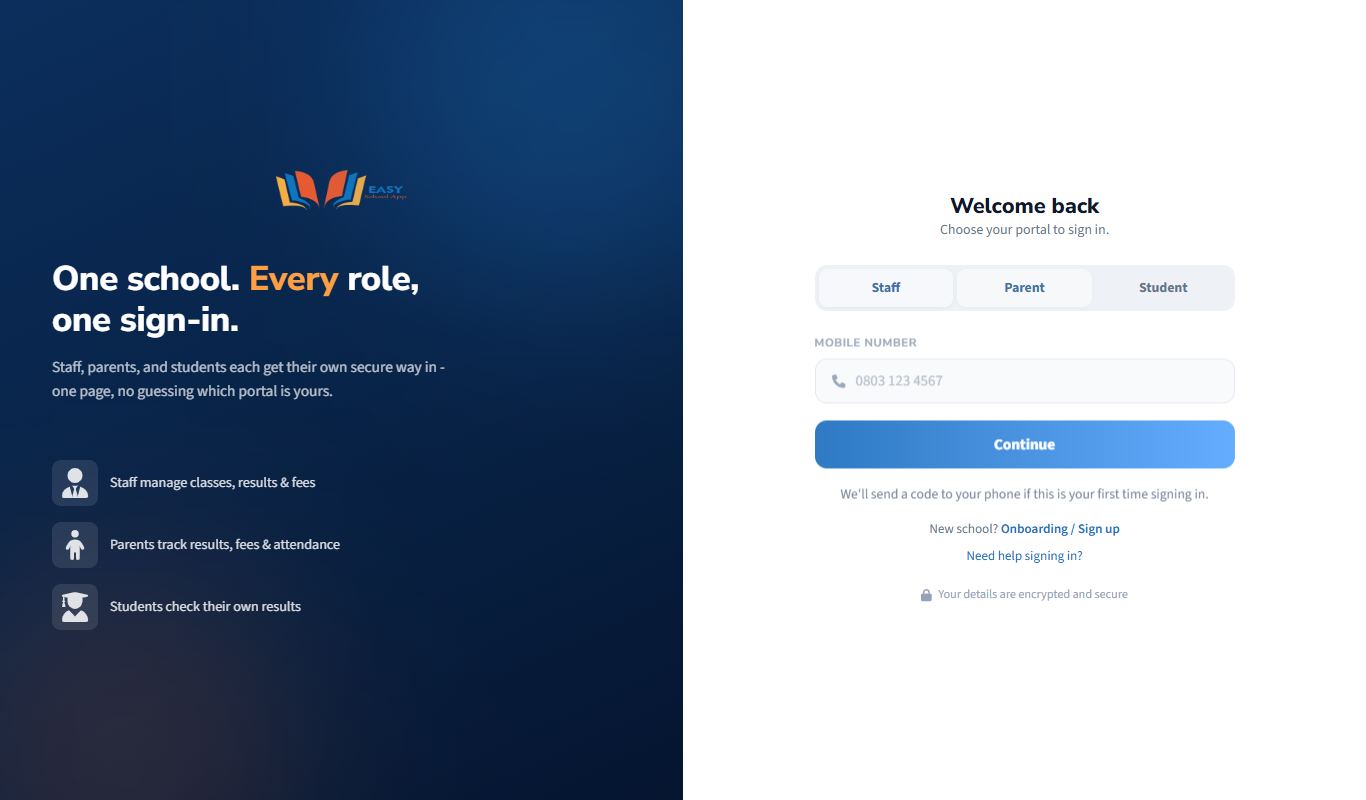
First time signing in
- After Continue, the app sends a code by SMS to your phone.
- Type the code and click Verify Code.
- Create a 4-digit PIN you will remember. Type it in New PIN and Confirm PIN.
- Click Set PIN & Login.
Common errors and fixes
| Problem | Fix |
|---|---|
| "This phone number is not registered with any student" | The school has a different number for you. Call the school office to update the child's Parent details. |
| "Enter a valid 11-digit number" | Type the number without +234, spaces or dashes, for example 08031234567. |
| The code does not arrive | Wait 1–2 minutes and click Resend code. Check that your phone has network and can receive SMS. |
Sign in as a student
Purpose: Open the Student Portal to see assignments, take tests and exams, and view your report card.
Who can use it: Students whose school has set a login PIN for them.
Steps
- Open the EasySchoolApp web address your school gave you.
- Click the Student tab.
- Type your Admission Number exactly as it appears on your ID card (for example
BFA2026-001). - Click Continue.
- Type your 4-digit PIN and click Log In.
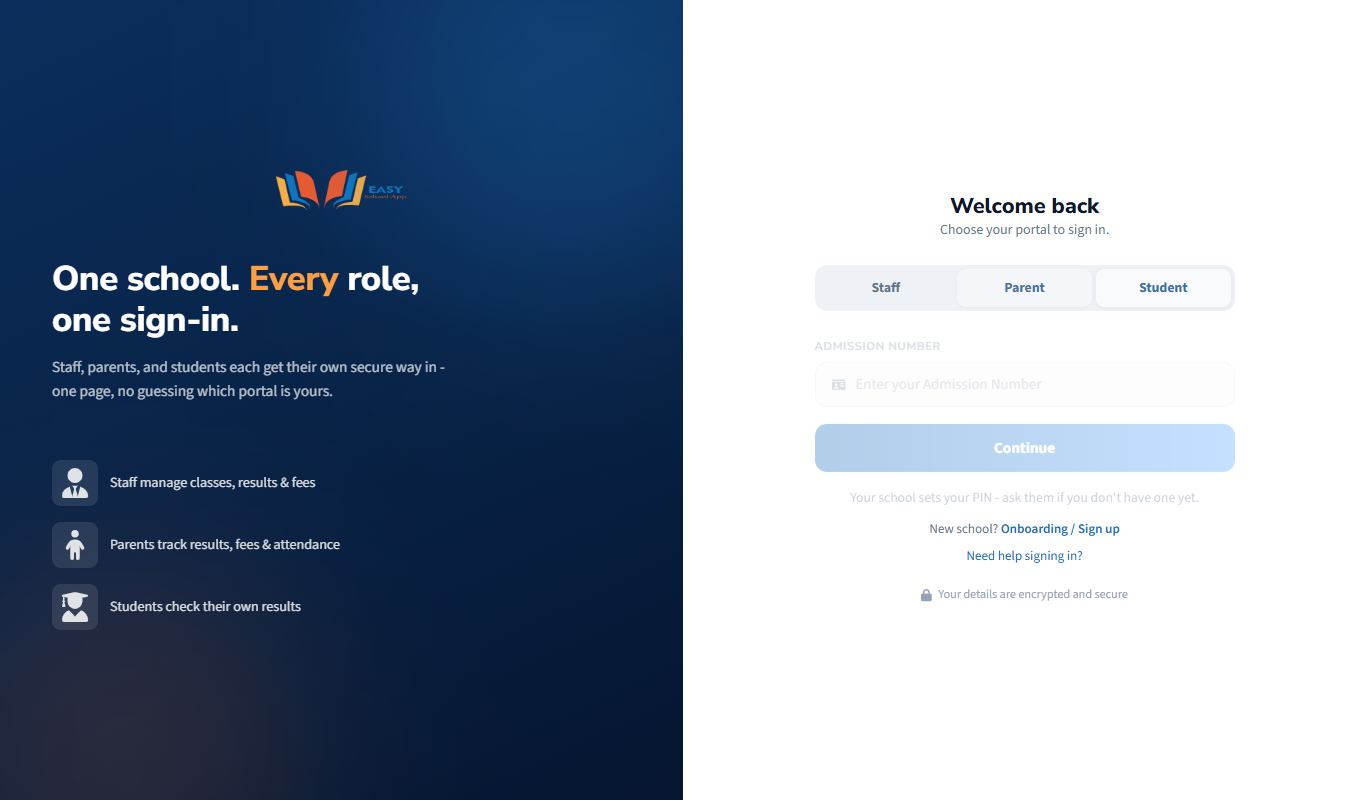
Common errors and fixes
| Problem | Fix |
|---|---|
| "Admission Number not found. Please check with your school." | Check the dashes and letters. If it is correct, your school has not created your login yet. Ask them to use Set login PIN on your record. |
| "Admission Number not registered for login." | Your record exists but has no PIN. Ask the school to set one. |
| "Invalid PIN." | Type it again. If you forgot it, use Forgot PIN? or ask the school to set a new one. |
Reset a forgotten PIN
Purpose: Choose a new PIN when you cannot remember the old one.
Who can use it: Everyone (staff, parents, students).
Steps
- On the sign-in page, choose your tab (Staff, Parent or Student).
- Type your email, phone number or Admission Number and click Continue.
- Click Forgot PIN?.
- Staff: click Send Reset OTP. Parents and students: a code is sent automatically.
- Type the code you receive.
- Type your new PIN twice (New PIN and Confirm PIN).
- Click the button to save and sign in (Set PIN & Login or Reset PIN & Login).
Common errors and fixes
| Problem | Fix |
|---|---|
| "PINs do not match." | Type the same PIN in both boxes. |
| "PIN must be 4-6 digits." | Staff PINs are 4 to 6 numbers. Parent and student PINs are exactly 4 numbers. |
| "No parent phone number on file…" (student) | The school has no parent phone for this student. Ask the school office to set a new PIN for you. |
| "Maximum resend attempts reached. Please wait 10 minutes." | Wait 10 minutes, then try again. |
| The code has expired | Ask for a new code with Resend OTP / Resend code and use it straight away. |
Using the app
Find your way around the staff portal
Purpose: Know where things are so you can work quickly.
Who can use it: All staff.
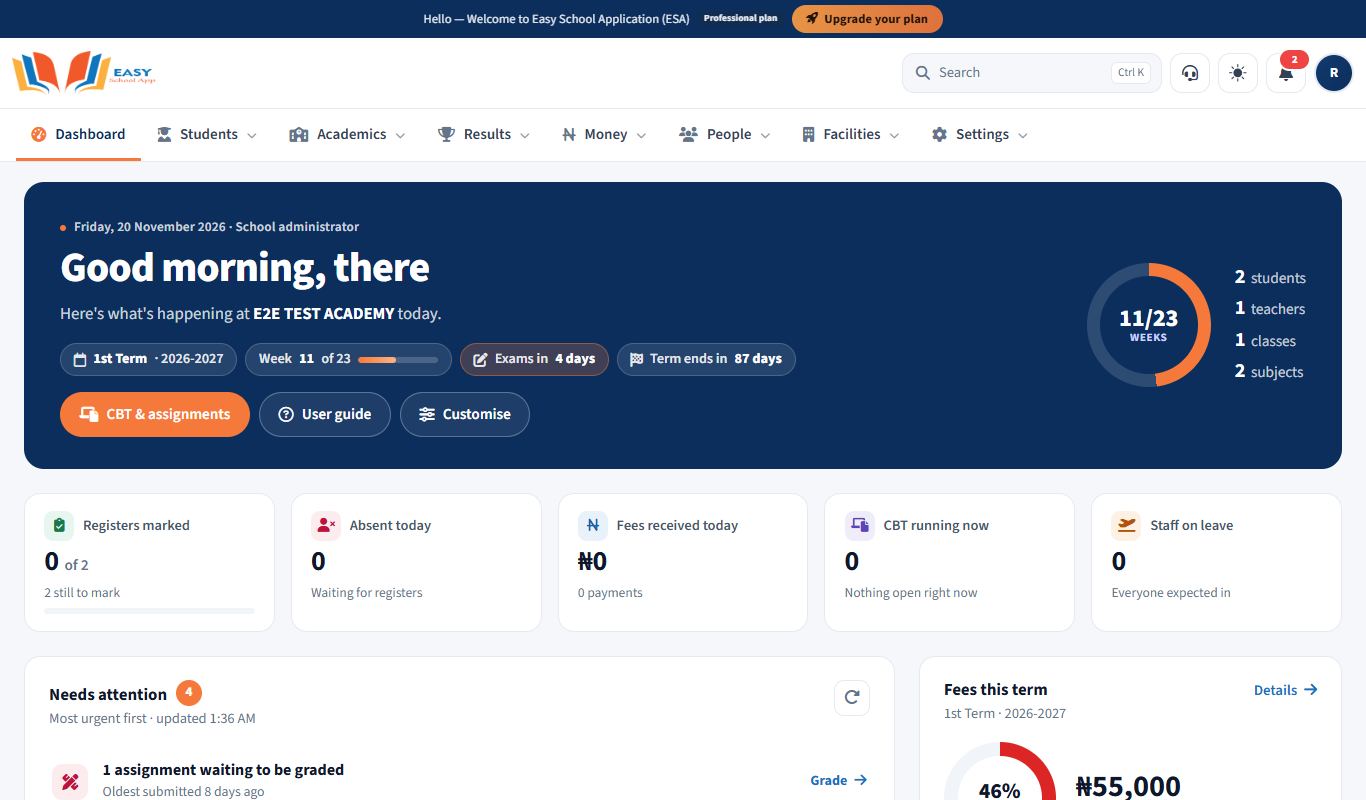
The top bar
- Main menu: Students, Academics, Results, Money, People, Facilities and Settings. Hover over or tap a group to see everything in it, with the most-used task highlighted on the right. Teachers also see My portal.
- Search (or press Ctrl + K): type a few letters like "fees" or "scores" and press Enter.
- Sun/moon icon: choose Light, Dark or Auto, and Menu position: Top or Side.
- Support (headset icon): your school's support tickets.
- Notifications (bell): the red number shows unread notifications. See all notifications opens a page you can search and filter.
- Avatar: My account, Change PIN, Install app and Logout.
The dashboard
- The top shows the term's progress and the figures that matter today.
- Needs attention lists what to do next (for example classes without a register today, unpaid fees, unfinished setup). Click an item to go straight there.
- A section for your job: the Money desk (bursar and admin), the Academic desk (principal and admin) and My teaching (teachers).
- Customise (top right) lets you hide or move sections. It is saved for you only.
The page footer
At the bottom of every page you will find the app version and the Help & User Guide link. It opens the guide for your role.
Read your notifications
Purpose: See messages from the app and the school, such as approvals, reminders and new features.
Who can use it: All staff and parents.
Steps
- Click the bell icon at the top right. A red number means you have unread notifications.
- Read the list. Click a notification to open the related page.
- Use the option to mark all as read when you have seen them.
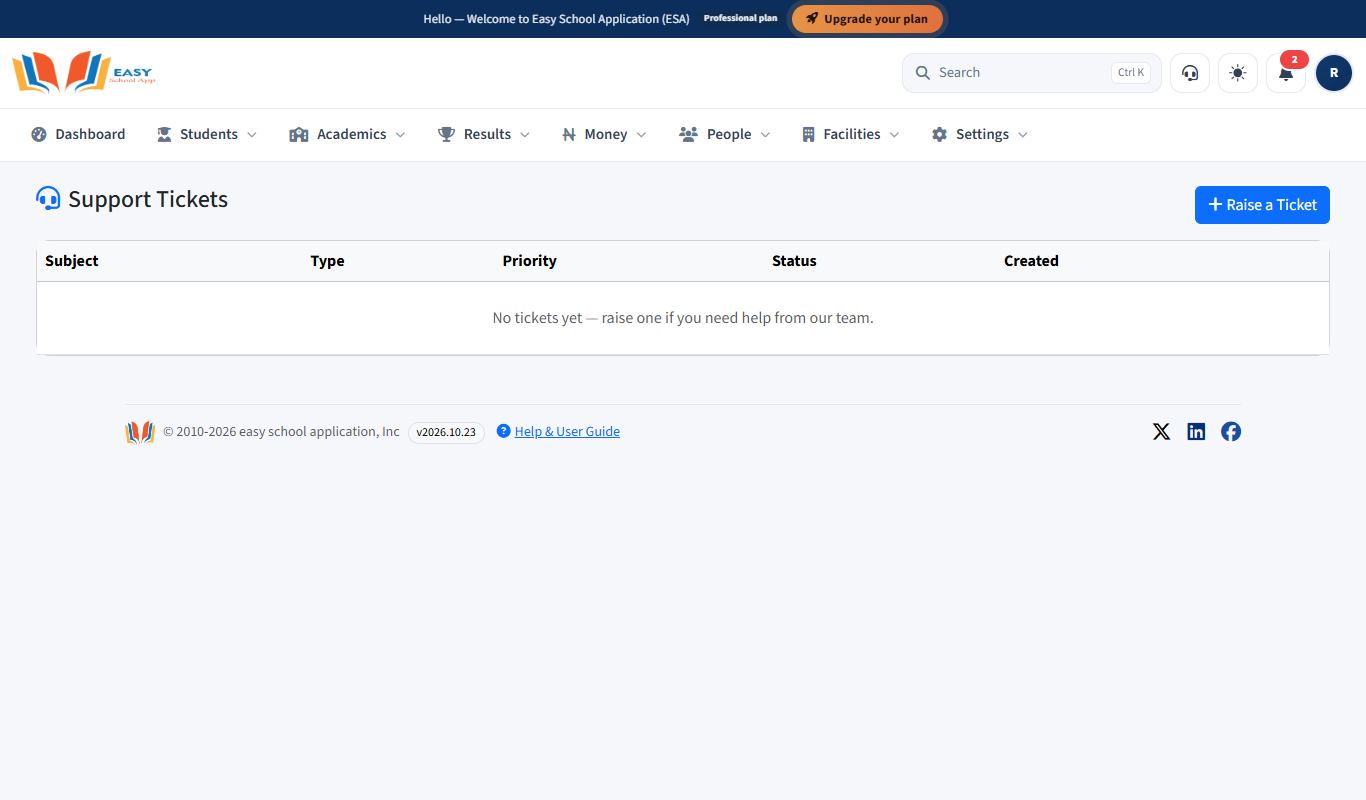
Ask EasySchoolApp for help (Support Tickets)
Purpose: Report a problem or ask a question to the EasySchoolApp support team, and follow their reply.
Who can use it: School Admin, Principal, Bursar.
Steps
- Click the Support (headset) icon at the top right. The Support Tickets page opens.
- Click Raise a Ticket.
- Write a short Subject, choose the Type and Priority, and describe the problem. Say which page you were on and what you clicked.
- Attach a screenshot if you can.
- Send the ticket. It appears in the list with its Status.
- Open the ticket later to read replies and answer them.
Update your profile
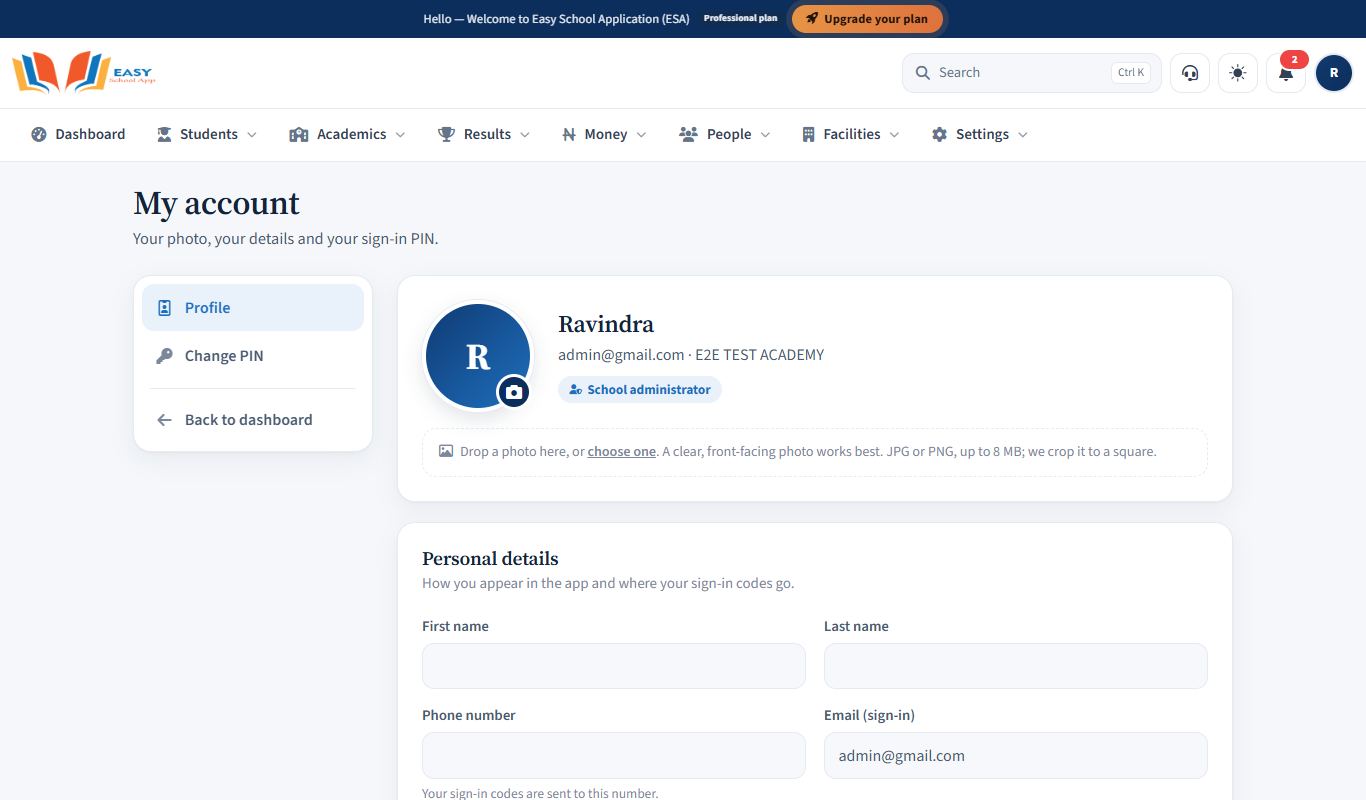
Purpose: See your account details, change your photo, and change your PIN.
Who can use it: All staff.
Steps – your account and photo
- Click your avatar at the top right, then My account.
- Your name, phone and email are shown. Only the School Admin can change them (on Settings › Staff access & roles › Email & phone).
- To change your photo, drop a photo on the page or tap the camera icon.
Steps – change your PIN
- Open Avatar › Change PIN.
- Click Send me a code. A 6-digit code is sent by SMS to your phone and by email.
- Type the code, then your new PIN twice, and click Save new PIN.
Install the app on your phone
Purpose: Open EasySchoolApp from your home screen like a normal app.
Who can use it: Everyone.
Steps (Android, Chrome)
- Open the EasySchoolApp web address in Chrome.
- Staff: click your avatar and choose Install app. Everyone else: tap the browser menu (⋮) and choose Install app or Add to Home screen.
- Confirm. The EasySchoolApp icon appears on your home screen.
Steps (iPhone, Safari)
- Open the web address in Safari.
- Tap the Share button, then Add to Home Screen.
- Tap Add.